You can put your own Grok Bot in Slack: how to set it up, what to give it, and what to keep out
By José Antonio Mijares | 2026-11-10 | 7 min read
xAI's Grok Bot can work in Slack for one person, not only for a team: connect Slack and it reads and posts as you, with drafts you approve. How to set it up, four jobs worth giving it, and the settings to choose before it touches a client channel.
You don't need a team plan to have a Grok Bot in Slack. A personal Bot connects to Slack as an app, and from then on it reads and posts as you, in the channels you can already post in. Messages it writes wait as drafts until you send them. If you want a Bot with its own name and handle that the whole channel can talk to, that's a Team Bot, and it needs a Teams or Enterprise plan.
Grok Bot is xAI's agent product, in public beta since August 11, 2026. Each Bot works on its own cloud computer with a browser, files and app connections, and keeps working after you close the app (Unite.AI). Putting it in Slack is the step that turns it from something you visit into something that sits where your work already happens.
Everything below comes from xAI's Grok Bot documentation and launch coverage, as of November 10, 2026. The product changes every week, so check the changelog before you rely on a detail.
Two ways to have a Grok Bot in Slack
A personal Bot, through the Slack app. In the Grok Bot app, open Connect apps and add Slack. xAI's docs are specific about what that means: "the app posts as the Slack user you connected, not as a separate bot that has to be invited," and it can post only where that user can post (xAI, Use the computer and apps). Nobody in the workspace sees a new member. They see you.
A Team Bot, with its own Slack app. Team Bots went into public beta on September 28, 2026, on Teams and Enterprise plans (xAI). The owner or a Manager picks "Bring to your team's Slack" and connects it. If the workspace requires approval, it sits at "Awaiting admin approval" until a Slack admin says yes. Each teammate then links their own Slack account under Settings, General, Shared Bots (xAI, Shared Bots). A reply is billed to the person the Bot is answering, not to its owner.
Don't confuse either of them with Grok for Slack, a separate app a workspace admin installs with an xAI API key, which answers questions about the workspace's messages and files (slack.hooks.x.ai). Different product, different bill.
How to set up a personal Grok Bot in Slack
- Check your plan. Grok Bot comes with some X, SuperGrok and Cursor plans, and the published lists disagree on which ones. Open the Grok Bot app: if you can create a Bot, you have access.
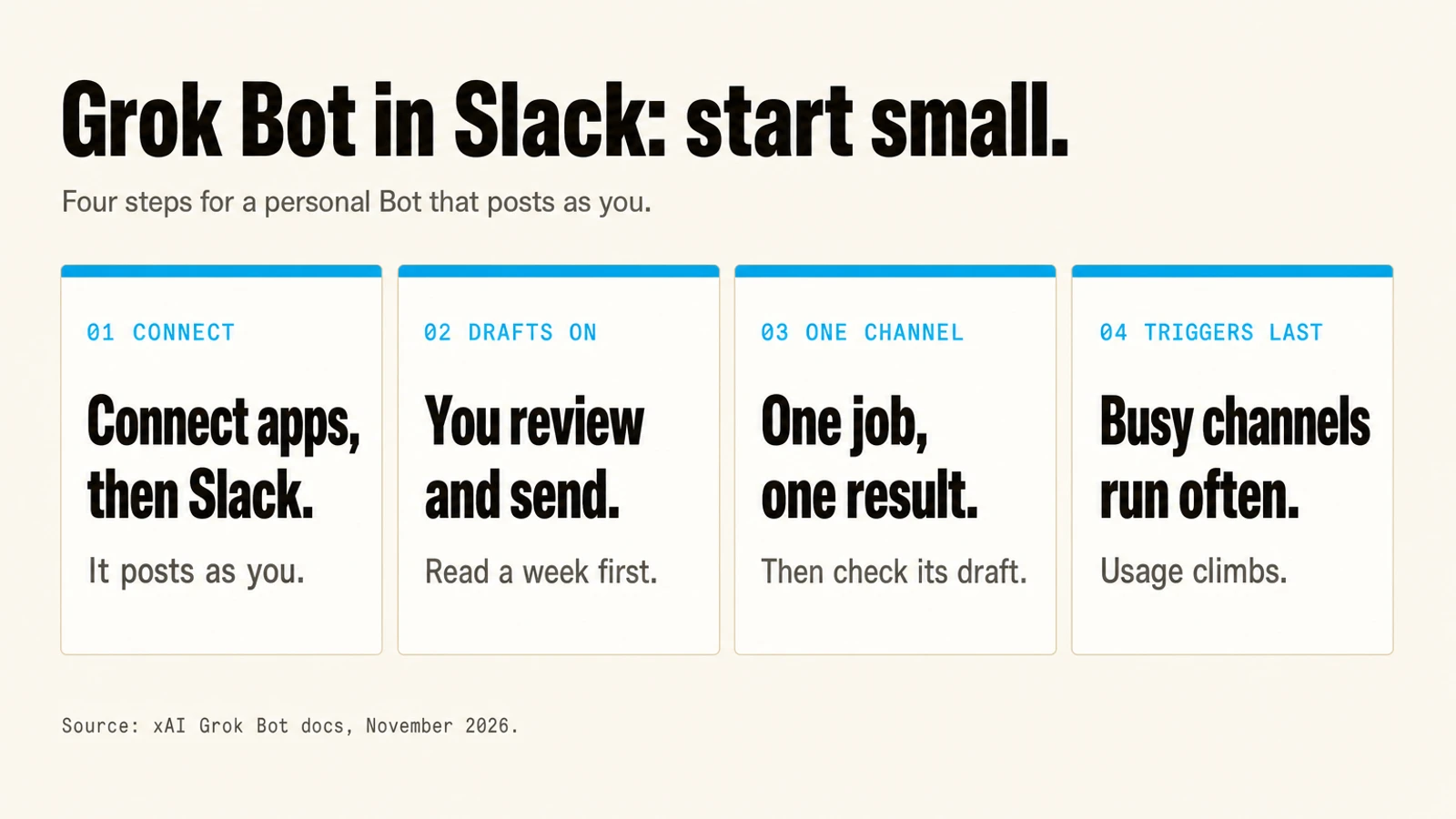
- Connect Slack once. Connect apps, Slack, then sign in to the workspace. A second workspace is a second connection.
- Keep drafts on. Messages the Bot prepares for Slack show up as drafts you review and send. A newer setting lets you turn drafts off per Bot. Leave it on until you've read a week of its messages.
- Give it one channel and one job. "Every morning at 9, read #client-acme and draft a three-line summary of what's waiting on us." Then read what it drafted.
- Add a trigger last. Routines can start from a Slack message that matches a phrase in a channel you pick (xAI, Skills and routines). On a busy channel, a trigger runs often and usage climbs with it.
Four jobs worth giving it
These fit what a Bot that posts as you can do safely.
- The morning catch-up. A draft summary of the channels you missed, with the questions addressed to you at the top. You read it; it doesn't reply.
- Follow-ups nobody owns. "Every Friday, list the threads in #sales where a client asked something and nobody answered." That's work that has to run when you aren't looking.
- First drafts of the replies you write every week. Status updates, meeting recaps, the "here's where we are" message to a client. It drafts, you edit and send.
- Research that ends in the channel. It uses its browser to compare three tools or vendors and drafts the comparison in the thread where someone asked.
What to keep out of it
Remember that it speaks with your name. A personal Bot's message in a client channel is your message. That's the reason to keep drafts on, and to keep it out of shared channels with clients until you trust it.
Connected apps are account-wide. xAI's docs say an app you connect is available to every Bot you run. A Bot you set up for your finances can reach Slack if Slack is connected for another Bot. XMTP Labs CEO Shane Mac described a Grok Bot posting his bank balances in a company Slack channel, and said a second Bot had the Slack access. His account hasn't been independently verified (Let's Data Science), but the boundary it points at is real. Keep personal money and client Slack on separate accounts.
Team Bots use their owner's apps. In Slack channels, a shared Bot uses only the apps its owner added and asks before it uses yours. Approval cards in a Slack thread can be answered only by the person who made the request (xAI, Approvals, security and privacy). So the owner's connections are everyone's exposure: don't publish a Bot that holds your personal accounts.
Ask your Slack admin first. Even the personal route puts a third-party app in the workspace. If you work inside a client's Slack, their rules apply, not yours.
If you run a team
Start personal, then share. One person runs a Bot for a month on their own channels, keeps a list of what it got wrong, and only then publishes it as a Team Bot with its own handle and none of their personal apps. That order is how we roll out every agent, and it's the same harness logic we wrote up in the harness, not the model. If you're comparing agents for the same job, our notes on Claude Code projects and Meta's Muse cover the other two we use.
Frequently Asked Questions
Q: Can I add a Grok Bot to Slack without a team plan?
Yes. A personal Grok Bot connects to Slack through the Slack app in Connect apps and posts as you, in channels you can post in. A Team Bot, with its own name and handle in Slack, needs a Teams or Enterprise plan.
Q: Does a personal Grok Bot show up as a new member in Slack?
No. xAI's docs say the Slack app posts as the Slack user who connected it, not as a separate bot that has to be invited. To your colleagues, its messages come from you.
Q: Will Grok Bot send Slack messages without asking?
By default, messages it prepares for Slack wait as drafts you review and send. A per-Bot setting can turn drafts off. Keep them on until you've read its work for a while.
Q: What's the difference between Grok Bot and Grok for Slack?
Grok Bot is xAI's agent with its own cloud computer, which you can connect to Slack. Grok for Slack is a separate app that a workspace admin installs with an xAI API key to answer questions about the workspace's messages and files.
Q: Who pays when a Team Bot answers in Slack?
The person it's answering. xAI's docs say a shared Bot's reply uses the Grok Bot allowance of the person who asked, not the owner's.