Meta's Muse is now in Mexico: how to set it up, what to use it for, and what not to let it do
By José Antonio Mijares | 2026-11-06 | 7 min read
Muse, Meta's AI agent, launched in Mexico on November 5, 2026, the first country in Latin America to get it. It doesn't just answer: it runs tasks in its own computer and asks before it pays. How to install it, five uses worth trying and the settings to choose first.
Muse is Meta's personal AI agent, and it has been available in Mexico since November 5, 2026. Mexico is the first country in Latin America to get it, after the United States, Canada, Japan and Singapore. It's in Spanish, it's for adults 18 and over, and the basic plan is free (Infobae, Expansión).
The difference from a chatbot is that Muse does the task instead of telling you how. It can read your email, move your calendar, look for products and book things, and it keeps working after you close the app. That's useful, and it's also why the first ten minutes of setup matter more than the prompts you write later.
Everything below comes from Meta's own description of Muse and from launch coverage in Mexico, as of November 6, 2026.
What Muse is
An agent with its own computer. Each user gets a virtual computer with its own browser, where Muse works on your behalf (Expansión). Meta describes it as an isolated Linux machine with a browser and enough storage and memory to do real work, and says your passwords and tokens are held by a separate service, so the agent only handles stand-ins (Meta, "How We Built Safety Into Muse").
Work in the background. It follows up on pending tasks and keeps going with the app closed (El Universal).
A gate before risky steps. A separate system Meta calls Sentinel decides whether each action is allowed, blocked or sent to you for approval (Axios). Sending an email or completing a purchase asks you first.
Connectors. At launch in Mexico it connects to Gmail, Google Calendar and Instagram, plus Mexican brands: Cinépolis, Coppel, Despegar, Kavak, Kueski, Liverpool and Rappi. Meta says the brand connectors roll out gradually, so you may not see all of them yet.
The models. Muse started on Muse Spark, the first model from Meta Superintelligence Labs (April 2026). Meta's newest, Muse Wonder (October 2026), went to developers first and reaches the app later, starting with paid subscribers (Notebookcheck).
How to install Muse in Mexico
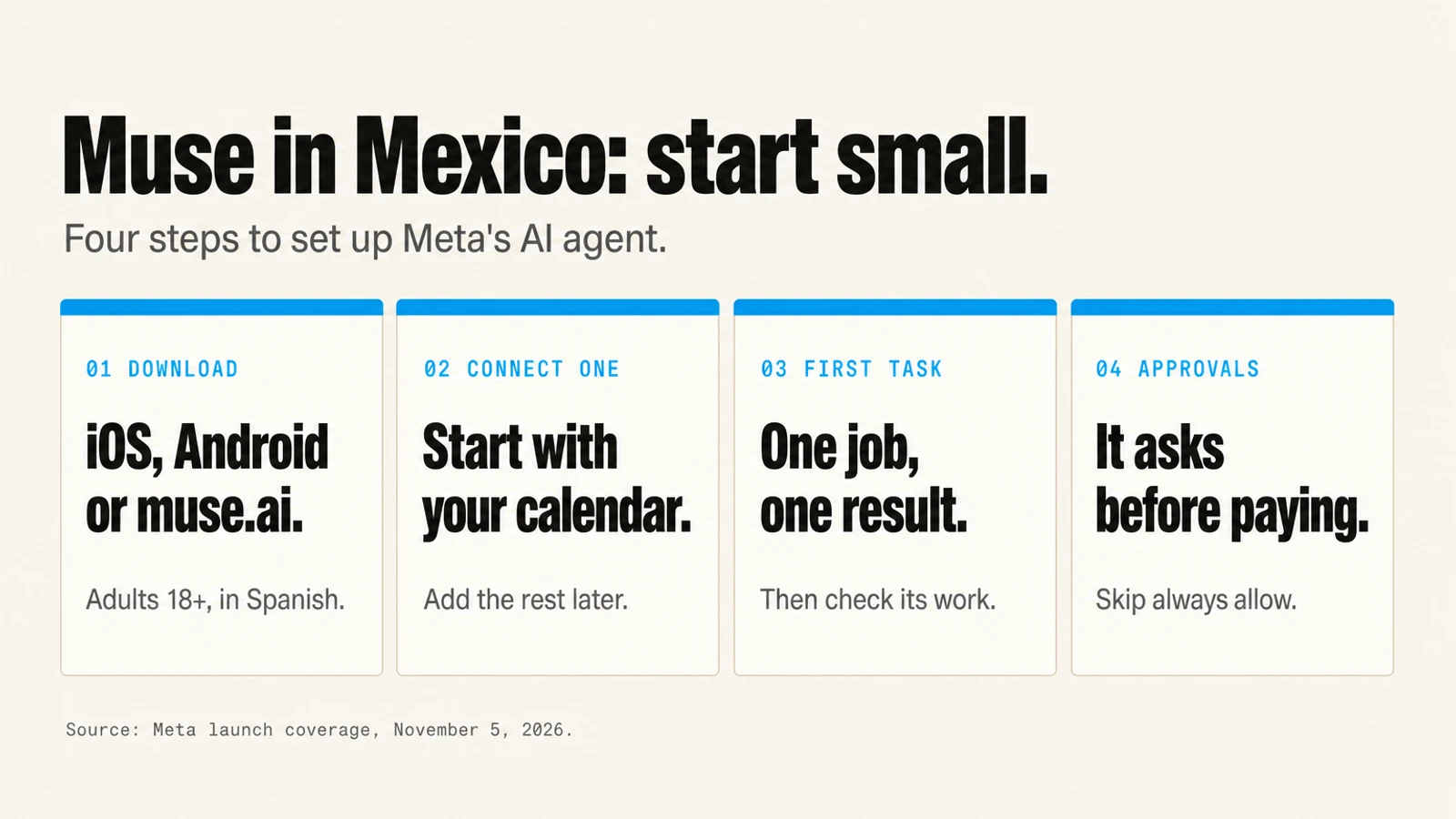
- Download it. Search "Muse" in the App Store or Google Play, or open muse.ai in a browser. Check that the publisher is Meta before you sign in.
- Sign in and confirm your age. It's for adults 18 and over. The app runs in Spanish.
- Connect one service. Start with your calendar. It's the connector with the least to lose and the quickest proof that Muse understood you.
- Give it one task with a clear result. "Find a free hour on Thursday afternoon and block it for the supplier call." Then check what it did.
- Read the approval prompt before you tap. It tells you what Muse is about to do. Choose "allow once" until you trust that kind of action.
Meta also lists WhatsApp as a way to talk to Muse. Launch-day reports disagree on whether that's live in Mexico yet, so look for it in your own WhatsApp rather than assuming. Support for Meta's AI glasses is announced as a next step, not available today.
Five things worth trying first
These fit what Muse can reach today.
- Inbox triage. Ask for a list of every email from the last week that's waiting on your answer, oldest first. You read the list; Muse doesn't reply.
- Scheduling around people. "Move my 1:1s on Friday to Thursday afternoon and tell me who has a conflict." Calendar is where an agent saves the most clicks for the least risk.
- A purchase you'd make anyway. Reorder something you buy every month through a connected store, and stop at the approval screen to compare the cart with what you expected.
- Travel research. Have it compare flight and hotel options for a fixed date and budget, and hand you three. Booking is a separate step you approve.
- Background follow-ups. "Every Monday, list the invoices I sent that haven't been answered." This is the job a chatbot can't do, because it needs to run when you're not there.
Best practices before you connect everything
One connector at a time. Each one adds something Muse can read and something it can do. Add the next only after the last one behaved.
Never "always allow" money or messages. Approvals can carry forward if you tell Muse to always allow an action. Keep payments, emails and messages on "ask me every time".
Separate work and personal accounts. If a client's information lives in your Gmail, connecting it lets Muse read it. Use a work account for work tasks and keep client data out of your personal agent.
Read what it remembers. Meta says you can inspect and download Muse's files, including its memory about you. Look once a week at first.
Check the training setting. Look in settings for whether your conversations are used to train Meta's models, and set it on purpose. Meta says data in Muse's computer isn't shared with its ad systems; that's Meta's claim, not something you can verify.
Expect mistakes. In the US, a user reported that Muse shared his home address with a Facebook Marketplace buyer and arranged a pickup he hadn't approved; Meta responded publicly (Dexerto). Read what it did, not just the summary it gives you.

If you sell in Mexico
Muse reaches stores in two ways. Partner brands like Liverpool, Coppel and Rappi get a connector built with Meta. Everyone else is reached through the browser in Muse's computer, which reads your site the way a fast, literal customer would.
That second path is the one you control. Prices, stock, shipping times and return rules need to be in the page text, not only in an image or a chat widget. Product pages need to load without a login. If you run Shopify, the work overlaps almost completely with getting ready for agent shopping, which we covered in what to set up first for Shopify's Fall '26 Edition.
If you build with AI
Muse's design is a useful checklist even if you never use it. Credentials outside the model, connectors with narrow permissions, a separate process that checks every outbound action, and a person's approval for the ones that spend money or speak for you. Those are the same parts we put around every agent we ship, in the harness, not the model.
Developers can use Muse Wonder through the Meta Model API. Meta hasn't said which countries the API covers, so check before you build a product in Mexico on it.
Frequently Asked Questions
Q: Is Meta's Muse available in Mexico?
Yes. Muse launched in Mexico on November 5, 2026, in Spanish, for adults 18 and over. Mexico is the first country in Latin America to get it, after the United States, Canada, Japan and Singapore.
Q: How do I install Muse?
Download "Muse" from the App Store or Google Play, or open muse.ai in a browser, then sign in and confirm you're 18 or older. Connect one service, such as your calendar, and give it one task with a clear result.
Q: Is Muse free?
The basic plan is free. Meta has paid plans with more features; reports from the US put them at 20 and 100 US dollars a month, and Meta hadn't published peso prices in the launch coverage we read.
Q: Which apps does Muse connect to in Mexico?
At launch, Gmail, Google Calendar and Instagram, plus connectors for Cinépolis, Coppel, Despegar, Kavak, Kueski, Liverpool and Rappi. Meta says the brand connectors roll out gradually.
Q: Can Muse spend money or send emails without asking?
Muse asks for approval before sensitive actions such as sending an email or completing a purchase, but approvals can carry forward if you choose to always allow an action. Keep money and messages on "ask every time".